How to Install APK Files on Windows 11 (2026)
Android apps are no longer limited to smartphones. Many Windows users now install APK files on their computers to enjoy mobile apps, play Android games, or use applications that are not available in the Microsoft Store. Thanks to improvements in Windows 11, running Android apps on a PC has become easier than ever.
If you’re wondering how to install APK files on Windows 11, this guide explains everything in simple words. You’ll learn what an APK file is, the different installation methods, system requirements, and important tips for getting started.
What Is an APK File?
An APK (Android Package Kit) is the standard file format used to install applications on Android devices. Every Android app is packaged as an APK file, which contains all the files needed for installation.
When you download an app outside the Google Play Store, it usually comes as an APK file. Since Windows and Android are different operating systems, Windows cannot open APK files directly. You need special software or built-in Windows features to run them.
Common Uses of APK Files
APK files are commonly used for:
- Installing Android apps manually
- Testing new app versions
- Running apps unavailable in your region
- Playing Android games on a PC
- Installing applications outside the Play Store
Can Windows 11 Run APK Files?
Yes. Windows 11 supports Android apps through compatible software and built-in tools.
Although APK files cannot be opened like normal Windows programs, there are reliable ways to install and use them. Depending on your computer and Windows version, you can choose the method that works best for you.
The two most popular options are:
- Windows Subsystem for Android (WSA)
- Android Emulators
Each method has its own advantages.
Method 1: Install APK Files Using Windows Subsystem for Android
Windows Subsystem for Android (WSA) is Microsoft’s official solution for running Android apps on Windows 11.
It creates a virtual Android environment inside your computer, allowing supported Android applications to run almost like native Windows programs.
Why Choose WSA?
Many users prefer WSA because it offers:
- Better Windows integration
- Smooth performance
- Easy app management
- Stable Android environment
- Support for compatible Android applications
Because it is designed for Windows 11, WSA provides a more natural experience than many third-party tools.
Steps to Install APK Files with WSA
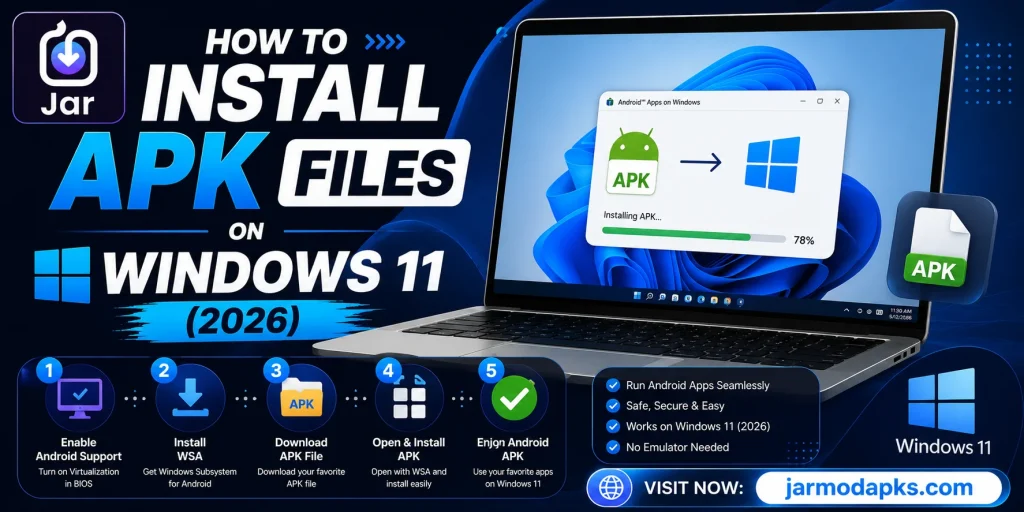
Step 1: Install Windows Subsystem for Android
Begin by installing Windows Subsystem for Android if it is available for your version of Windows.
Step 2: Enable Developer Mode
Open the WSA settings and enable Developer Mode.
This option allows APK files to be installed manually.
Step 3: Connect to the Android Environment
Launch Windows Subsystem for Android and make sure it is running before attempting to install any APK file.
Step 4: Install the APK
Use the appropriate installation method supported by WSA to install your Android application.
Step 5: Open the Application
Once installation is complete, the app will appear in the Windows Start Menu, allowing you to launch it like a regular Windows application.
Method 2: Install APK Files Using an Android Emulator
Another popular option is using an Android emulator.
An emulator creates a virtual Android device inside your computer. This allows you to install and use Android applications without changing your Windows system.
Many beginners prefer this method because it is simple and requires very little technical knowledge.
Advantages of Android Emulators
Android emulators offer several benefits:
- Easy installation
- Beginner-friendly interface
- Support for many Android apps
- Suitable for gaming
- Good compatibility with different APK files
Many users install emulators when Windows Subsystem for Android is unavailable or unsupported.
General Steps for Emulator Installation
Although different emulators have slightly different interfaces, the installation process is generally similar.
Step 1
Install your preferred Android emulator.
Step 2
Launch the emulator.
Step 3
Import or drag the APK file into the emulator.
Step 4
Wait for the installation process to finish.
Step 5
Open the application and begin using it.
Most Android apps can be installed within a few minutes.
Windows Subsystem vs Android Emulator
| Feature | Windows Subsystem for Android | Android Emulator |
|---|---|---|
| Installation | Built into Windows 11 | Separate software |
| Performance | Usually faster | Depends on PC hardware |
| Ease of Use | Moderate | Beginner-friendly |
| Gaming | Good | Excellent |
| Windows Integration | Better | Limited |
| Resource Usage | Lower | Higher |
Choosing the right method depends on your computer specifications and personal preferences.
Minimum System Requirements
Before installing Android apps, make sure your computer meets the basic requirements.
| Requirement | Recommended |
|---|---|
| Operating System | Windows 11 |
| RAM | 8 GB or higher |
| Storage | SSD recommended |
| Processor | Modern Intel or AMD CPU |
| Virtualization | Enabled in BIOS |
| Internet | Stable connection |
Meeting these requirements helps improve overall performance and app stability.
Why People Install APK Files on Windows 11
There are many reasons why users want Android apps on their computers.
Some of the most common include:
- Playing Android games on a larger screen
- Using mobile apps while working
- Accessing apps unavailable for Windows
- Testing Android applications
- Improving productivity
- Running communication apps
- Enjoying better keyboard and mouse controls
Windows 11 makes these tasks much easier than previous Windows versions.
Benefits of Running Android Apps on a PC
Using Android applications on a Windows computer offers several advantages.
Main Benefits
- Larger display
- Better multitasking
- Easier typing with a keyboard
- Improved gaming controls
- Better productivity
- Faster file management
- Convenient app testing
- Smooth desktop experience
These advantages continue to encourage more users to install Android applications on Windows 11.
Tips Before Installing APK Files
Before installing any APK file on your Windows 11 PC, it’s a good idea to follow a few basic safety tips. These steps can help protect your computer and reduce the chance of installation problems.
Download APK Files from Trusted Sources
Always use a reliable website to download APK files. Unknown websites may offer modified or damaged files that could affect your device or fail to install correctly.
Check App Compatibility
Not every Android app works perfectly on Windows 11. Before downloading, make sure the app supports your Android version and is compatible with the installation method you are using.
Keep Enough Storage Space
Running Android apps requires free storage. Low storage space can cause installation errors or slow app performance.
Enable Virtualization
If you plan to use an Android emulator, virtualization should be enabled in your computer’s BIOS. This improves performance and allows many emulators to run smoothly.
Keep Windows Updated
Installing the latest Windows updates helps improve compatibility with Android apps and fixes bugs that may affect performance.
Common APK Installation Problems and Solutions
Sometimes an APK file may not install or run correctly. Most problems are easy to solve with a few simple checks.
APK File Will Not Install
Possible reasons include:
- Corrupted APK file
- Unsupported Android version
- Incomplete download
- Not enough storage
Solution: Download the APK again from a trusted source and verify that your PC meets the system requirements.
App Crashes After Opening
If the app opens and then closes immediately, the APK may not be compatible with your Android environment.
Solution:
- Update your emulator or WSA.
- Install the latest version of the APK.
- Restart the Android environment.
Slow Performance
Android apps may run slowly if your computer does not have enough memory or processing power.
Solution:
- Close unnecessary programs.
- Increase the emulator’s RAM allocation if supported.
- Use an SSD instead of an HDD.
- Restart your PC.
APK Is Not Supported
Some APK files are designed for newer Android versions or specific device hardware.
Solution:
Install a compatible version of the application or update your Android environment.
Is It Safe to Install APK Files on Windows 11?
Yes, installing APK files can be safe if you follow good security practices.
Safe installation depends more on where the APK comes from than on Windows itself.
Safe Practices
- Download APK files from trusted websites.
- Scan files with antivirus software before opening them.
- Keep Windows Security enabled.
- Avoid modified files from unknown sources.
- Read user reviews before downloading.
By following these precautions, you can greatly reduce the risk of installing unsafe software.
Advantages of Installing APK Files on Windows 11
Running Android apps on a Windows computer offers many practical benefits for both personal and professional use.
Main Advantages
- Enjoy Android apps on a larger screen
- Play mobile games with a keyboard and mouse
- Use apps not available for Windows
- Test Android applications during development
- Improve productivity with desktop multitasking
- Access mobile apps without switching devices
- Better control using a full-size keyboard
- Faster file management between Windows and Android
These advantages make Windows 11 a great platform for users who regularly use Android apps.
Windows Subsystem for Android vs Android Emulator
Choosing the right installation method depends on your needs.
Windows Subsystem for Android
Pros
- Better Windows integration
- Faster performance
- Lower resource usage
- Native Windows experience
Cons
- Limited availability in some regions
- Supports fewer advanced gaming features
Android Emulator
Pros
- Easy for beginners
- Supports many Android games
- Works on most Windows PCs
- Wide app compatibility
Cons
- Uses more RAM and CPU
- May run slower on low-end computers
Which Method Should You Choose?
If your PC supports Windows Subsystem for Android, it is usually the better option for everyday Android apps because it offers smoother integration and better performance.
If you mainly play Android games or your computer does not support WSA, an Android emulator may be the better choice.
Both methods work well when installed correctly.
Final Verdict
Installing APK files on Windows 11 is now much easier than it was in previous versions of Windows. Whether you want to use Android apps for work, enjoy mobile games on a larger screen, or test applications, Windows 11 offers reliable ways to run Android software.
Windows Subsystem for Android provides a smooth and integrated experience for supported apps, while Android emulators remain an excellent option for gaming and wider compatibility. Before installing any APK, always check your system requirements, keep your Windows version updated, and download files only from trusted sources.
By following the correct installation steps and basic safety practices, you can enjoy Android apps on your Windows 11 PC with better performance, improved productivity, and a seamless desktop experience.
Frequently Asked Questions (FAQs)
Can Windows 11 install APK files directly?
No. Windows 11 requires Windows Subsystem for Android or an Android emulator to install and run APK files.
Which is better: WSA or an Android emulator?
WSA is generally better for productivity and system integration, while Android emulators are often preferred for gaming and broader app compatibility.
Is installing APK files on Windows safe?
Yes, as long as you download APK files from trusted sources and scan them with antivirus software before installation.
Why won’t my APK file install?
Common reasons include an unsupported APK version, corrupted download, insufficient storage, or incompatible Android environment.
Do I need virtualization enabled?
Yes. Most Android emulators require virtualization to be enabled in your BIOS for the best performance.
Can I play Android games on Windows 11?
Yes. Both Windows Subsystem for Android and Android emulators allow you to play many Android games on your PC.
How much RAM is recommended?
At least 8 GB of RAM is recommended for smooth performance when running Android apps.
Can I uninstall Android apps later?
Yes. Installed Android apps can be removed just like other applications from your Windows 11 computer.